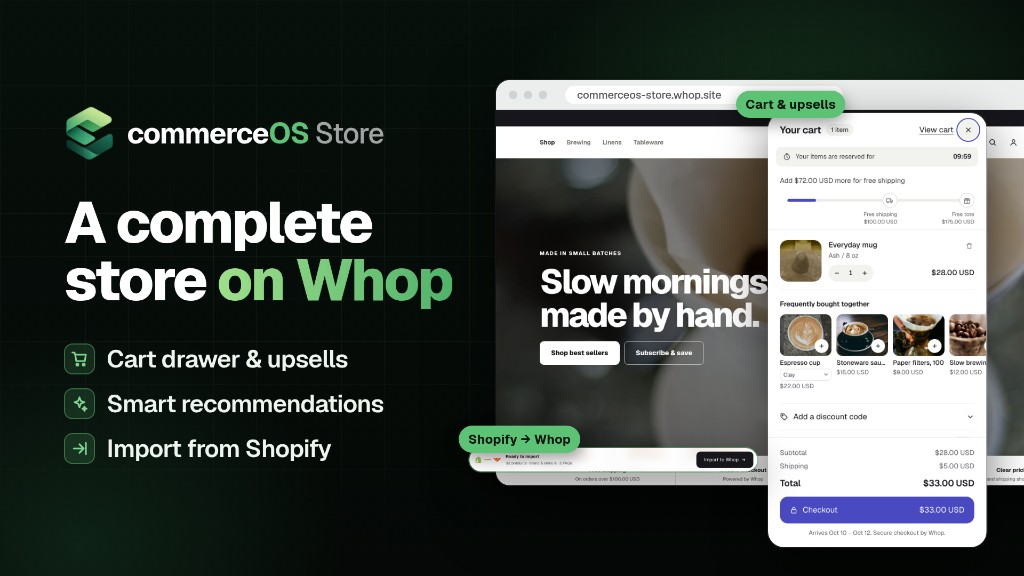
Move your Shopify store to Whop in a few clicks, without a Shopify login, API keys or copy-pasting. Products, prices, photos, brand colours, policies and FAQs all come over with commerceOS Store.
The walkthrough below matches the video: type in your store address, check the preview, untick anything you do not want, press Import to Whop, then tidy products and storefront settings.
What carries over
- Products: titles, descriptions, and every size or colour as its own price option (up to 100 per product)
- Prices and compare-at (“was”) prices, in your store’s currency
- Photos, copied onto Whop: the first 8 go in the Whop product gallery, and up to 24 more show on your store’s product page
- Product page extras: tabs (ingredients, how to use, shipping…), FAQs, and benefit pills under the price
- Collections, with their products in them
- Brand: store name, logo, button and background colours, announcement bar and home page text
- Policies (refunds, shipping, privacy, terms), saved as pages and linked in your store’s footer
- Store FAQs, saved together as an FAQ page
What does not come over: customers, orders, reviews, discount codes, gift cards, exact stock counts, subscriptions (products come over as one-time purchases) and your theme’s layout and fonts.
Before you start
- A Whop account with a business. Your products are created in this business. Sign in with the Whop account that owns or runs it.
- commerceOS Store installed on that business: apply the blueprint.
- Your Shopify store address. Use the address shoppers use (like
yourstore.com) or youryourstore.myshopify.comaddress. - No Shopify login, password or API key is needed. The app only reads what your store already shows to the public.
- Your store should be open (no storefront password). If it is password protected, only products and FAQs can be read. Colours, logo, policies and full variant lists need the store to be open. Turn the password off in Shopify under Online Store → Preferences, run the migration, then turn it back on if you like.
Try this in WhopMail
Connect your Whop store and send your first campaign or automation today. Free to start.
Step by step
1. Open the app admin
Open commerceOS Store from your Whop dashboard, then click Sign in with Whop. After the blueprint is live, you can also go to /admin on your store.
2. Go to “Migrate from Shopify”
In the left menu, under Store, click Migrate from Shopify. You can also find it under Settings, using the Migrate from Shopify button. The page says Move your Shopify store to Whop.
3. Enter your store address
Type your address into the box (it shows yourstore.com as an example) and click Find my store.
The button changes to Reading… while the app reads your products, colours, policies and FAQs. Big stores can take up to a minute. Nothing changes on Whop yet.
4. Check the summary at the top
You will see your store name and address, the currency, and how many products, variants, collections, policies and FAQs were found. Open Where this came from to see what could and could not be read.
If you change the address, click Look again.
5. Brand and colours
Tick what you want to bring over: Store name, Logo, Colours, Announcement bar and Home page text. The mock-up beside the list (“How it could look”) updates as you go.
- Click Adjust colours to change the Buttons and Background colours before importing.
- Ticked items replace what is in your storefront settings now. You can change them later any time.
- Fonts are not copied. Pick the closest look later in Storefront → Theme.
6. Products: choose what to import
- Every product starts ticked, except gift cards and products with no price, which cannot be sold on Whop. Products you imported before are also left unticked (see step 11).
- Use Search products, Select all and Select none, or tick and untick each card.
- Each card shows the price (with the compare-at price crossed out), the number of options, and the photo count. For example: 12 photos · 8 in Whop gallery, 4 extra on your store page.
- Cards may also be tagged Sold out or Already on Whop.
7. Products: set the options above the list
- Show on the store straight away: leave this on to list products on your store as soon as they are imported. If you turn it off, they are created hidden. You can switch each one on later in Products with the Show on store switch.
- Photos: choose how many photos to copy per product:
- All (up to 32): the first 8 go in the Whop gallery, the rest on your store’s product page.
- Up to 8 (Whop gallery only)
- Up to 5
- Main photo only (fastest)
- Copy extra details from product pages: leave this on to copy the tabs, FAQs and benefit pills your Shopify theme shows on each product page. Many stores keep their real product info there, not in the description. If the app finds some, it says Your product pages have extra details and gives you a See what comes over button.
- Each size or colour becomes its own price option with the same price and SKU. Shopify does not share stock counts, so set them in Whop afterwards.
8. Look inside a product with “See details”
Click See details on any card to see exactly what will come over:
- every photo, with the extras beyond the Whop gallery marked
- the headline, description and price options
- under Product page: the benefit pills under the price, the tabs under the buy button, and the FAQs
Any trimming is listed at the bottom, for example “Ingredients” shortened to 2,000 characters. Click Close when you are done.
9. Collections, policies and FAQs
- Collections: ticked collections are created on your store with their products in them. The first 12 are ticked to start with.
- Policies: each is saved as a page on your store and linked in the footer.
- FAQs: these are saved together as one FAQ page.
Just below these sections, a Not copied note lists what cannot come over.
10. Import
The bar at the bottom says Ready to import and sums up your choices, for example 48 products · brand & colours · 4 policies · 6 FAQs. Click Import to Whop.
- The import screen shows Moving your store to Whop, with your products flying from Shopify into Whop.
- It moves through Brand & colours → Products → Policies → FAQs, showing what it is working on now (“Now: …”) and a count for each step.
- To pause, click Stop after this step. Anything not started is listed as skipped.
11. Read the results
When the import finishes, you will see Your store is on Whop, or Import finished, with a few problems.
- There are counts for products created, details updated, partly created, skipped and failed, plus a line for brand, policies and the FAQ page.
- Open See every step for a table with a Result and Details for each item. It opens on its own if something needs a look.
- Typical notes:
- 8 photos in the Whop gallery, 4 more on your store’s product page (Whop’s gallery holds 8)
- 2 of 12 photos couldn’t be copied to Whop (…) — the product is still created without those photos
- “Ingredients” shortened to 2,000 characters
- Variant “XL / Red” skipped: …
- Buttons: See products, Storefront settings and Back to the preview.
12. Re-import or refresh products you already brought over
- Run the migration again any time. Products that came over before show Already on Whop and stay unticked, so they are never copied twice.
- To refresh one, tick it. Its description, product page details and photos are updated (status Details updated), but its prices and variants stay as they are.
- Products that failed before were never created, so they are ticked again automatically.
13. Tidy up afterwards
- Products → open a product (the product editor):
- Photos: reorder or remove photos in the Whop gallery (up to 8; the first one is the main photo). Use More photos on your store page to add, reorder or remove up to 24 extra photos that show after the gallery on your store.
- Info tabs and FAQ: edit the tabs and questions that came over.
- Buy box: edit the benefit pills and other lines near the price.
- Click Save changes, then View on store to check it.
- Set your stock counts in Whop, because Shopify does not share them.
- Storefront (left menu): pick a Theme, and check your colours, logo, announcement bar and home page text.
- Visit your store: open a few products, the footer policy pages and the FAQ page (
/pages/faq).
You can also set up cart upsells, a post-purchase upsell flow and abandoned checkout emails in WhopMail once the store is live.
Good to know (limits)
- Photos: Whop’s product gallery holds 8 photos. The first 8 (main photo first, in Shopify’s order) go there. Up to 24 more are copied to Whop too and shown on your store’s product page, after the gallery. Whop’s own product page shows only the 8. You can bring up to 32 photos per product.
- Only Shopify-hosted photos are copied.
- Product page details:
- up to 8 tabs per product, each up to 2,000 characters
- up to 20 FAQs per product (fewer if space runs out)
- very long sections are shortened, and the import notes tell you which
- Descriptions: Whop’s description field takes 1,500 characters. A longer description is kept in full (up to 2,000 characters) in a Description tab on the product page.
- Variants: up to 100 per product. Paid prices must be at least 1.00. Variants missing a price or option are skipped and listed in the notes.
- Titles are shortened to 80 characters. A product can be in up to 15 collections.
- Very big stores: one run reads up to 1,000 products. Run it again for the rest.
- Stock counts are not shared by Shopify. Sold-out variants come over as sold out; set real stock in Whop.
- Subscriptions come over as one-time purchases.
- Your Shopify theme’s layout and fonts are not copied. Your content goes into your commerceOS Store design, and you choose the look in Storefront.
- Shared sections: if your theme shows the same section on every product page (for example a shared FAQ or a shipping and returns tab), it is copied into every product. Remove it from products where you do not want it, using the product editor.
- Policies: very long policies may have their end cut off. The import notes say so.
- Not copied: customers, orders, reviews, discount codes and gift cards (Shopify does not share them publicly), exact stock counts, subscription options, and theme layout and fonts.
Troubleshooting
| You see | What to do |
|---|---|
| That doesn’t look like a store address. Try something like yourstore.com. | Type just the address, e.g. yourstore.com or yourstore.myshopify.com, with nothing after it. |
| … doesn’t look like a Shopify store. Enter the address shoppers use, or your .myshopify.com address. | Try your .myshopify.com address instead of a custom domain. |
| We couldn’t reach … Check the address and try again. / the store took too long to answer | Check that the store opens in your browser, then try again. |
| We couldn’t read any products from … Try again in a minute. | Wait a minute and click Find my store (or Look again) again. |
| Your store is password protected, so only what the Storefront MCP shares could be read… | Turn off the storefront password in Shopify (Online Store → Preferences) and run it again to get colours, logo, policies and full variants. |
| X of Y photos couldn’t be copied to Whop (…) | The product was still created. Add the missing photos in the product editor (Photos or More photos on your store page). |
| Whop didn’t accept the photo gallery (…) | The product was created and its photos went on your store’s product page. Pick up to 8 for the Whop gallery in the product editor. |
| Variant ‘…’ skipped: Whop’s smallest paid price is 1.00 (or No price, Whop allows 100 variants per product) | Fix the price or options in Whop, or split a very large product. |
| Status Partly created (3 of 5 variants created) | The product exists. Open it to see which variants failed and add them in Whop. |
| Already on Whop from an earlier migration. | That’s expected; it isn’t copied twice. Tick it on purpose to refresh its details and photos. |
| We couldn’t check which products were already imported… | Re-importing now could create duplicates, so only tick products you know are new. |
| Logo not copied: … | Upload your logo in Storefront instead. |
| Some long product page sections were shortened to fit Whop / … shortened to 2,000 characters | Nothing is broken. Check the text in the product editor (Info tabs). |
Ready to email your Whop members?
Create a free WhopMail account, or install it straight from the Whop App Store.
Some links to Whop on this site are affiliate links. If you sign up through them we may earn a commission, at no extra cost to you.