
The setup to connect Shopify to Whop takes minutes. What makes a launch smooth is everything around it: what you prepare before, what you test on the day, and what you watch in the first week. This guide is a launch plan, written for Shopify store owners who want Whop checkout and payouts without a bumpy switch.
What you are connecting
Your Shopify store keeps its theme, products, cart and orders. Our official Whop app hands buyers to a Whop-powered checkout when they pay, runs the charge through your Whop company, and creates the paid order back in Shopify. Whop pays you out.
You do this from Whop, not from Shopify's payment settings, because Whop is not a Shopify payment provider.
Before launch: the checklist
Accounts
- A Whop account and the Whop company that should receive the money
- Payout details added on Whop
- Admin access to your Shopify store
Store
- Products, prices and variants correct in Shopify
- Shipping rates set in Shopify (Whop checkout uses them)
- Discount codes you plan to use created in Shopify
- A low-priced product or a test discount for your first order
Customer-facing
- Refund and shipping policies up to date
- A short note ready for your email list, if you plan to tell customers about new payment options
- Ads paused or ready to pause during the switch, if you run high spend
Launch day: connect Shopify to Whop in 4 steps
Install our official Whop app
Install our app from the Whop App Store, where it is called Upsell OTO & Order Bumps. Add it to the Whop company from your checklist.
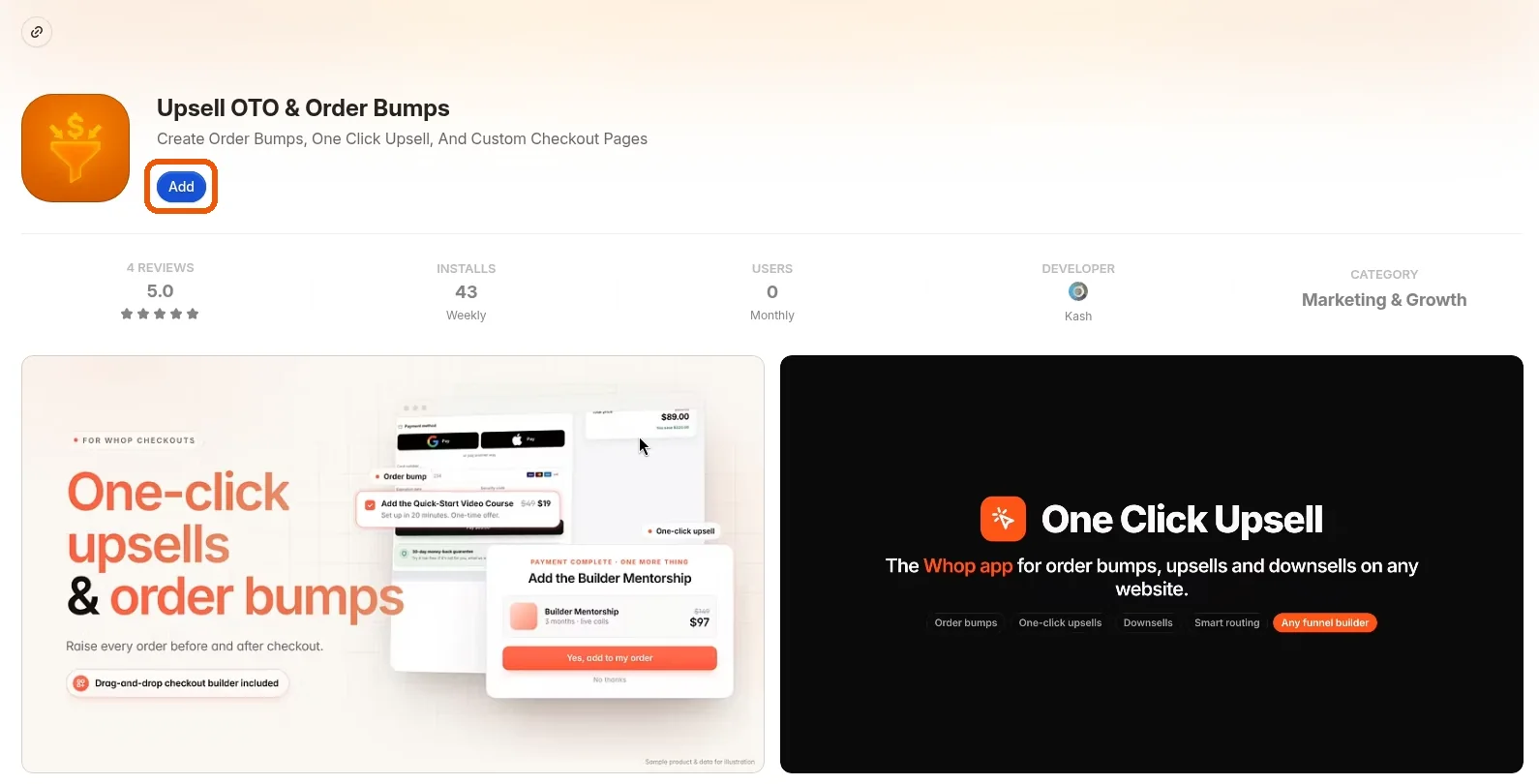 Install our official Whop app
Open the app and click Shopify in the sidebar
Open the app and click Shopify in the sidebar. This is your store connection hub from now on.
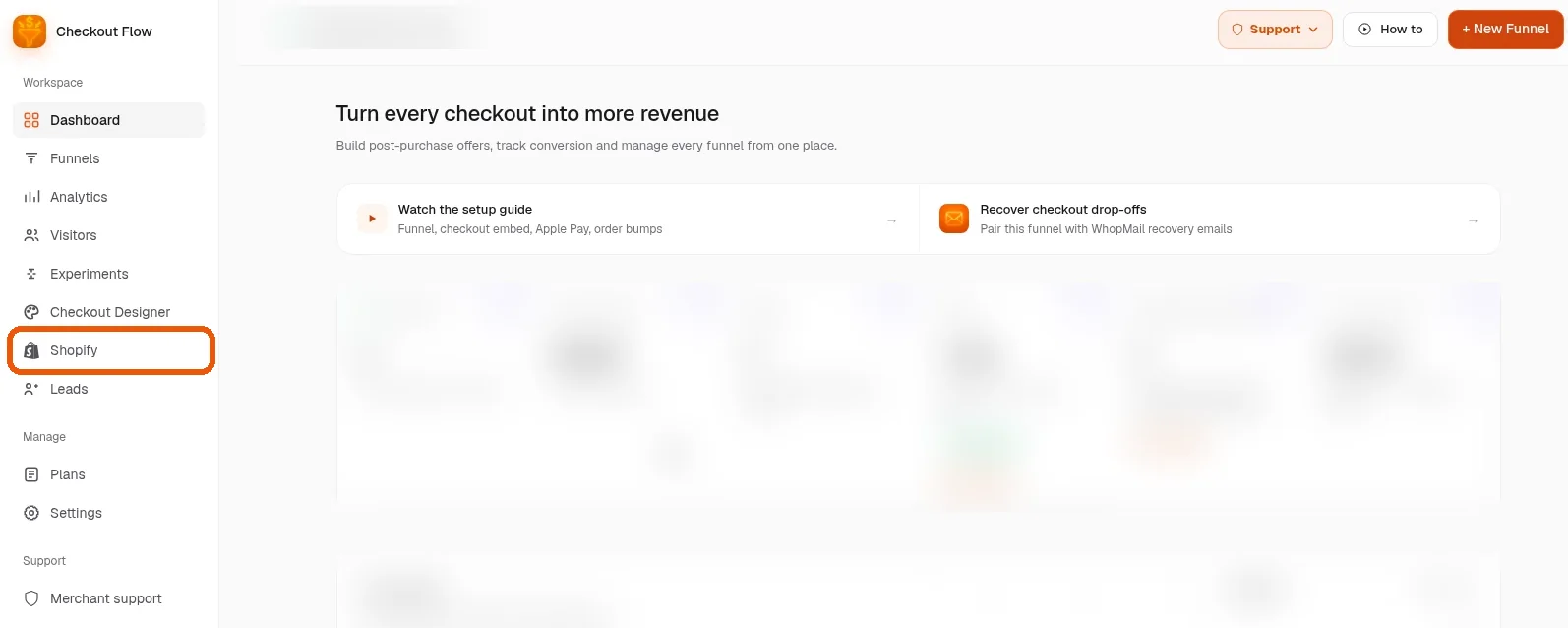
Follow the guided setup
Go through the guided setup. It shows you what to do on each screen; click Continue as you finish each one. Plan for about 10 minutes.
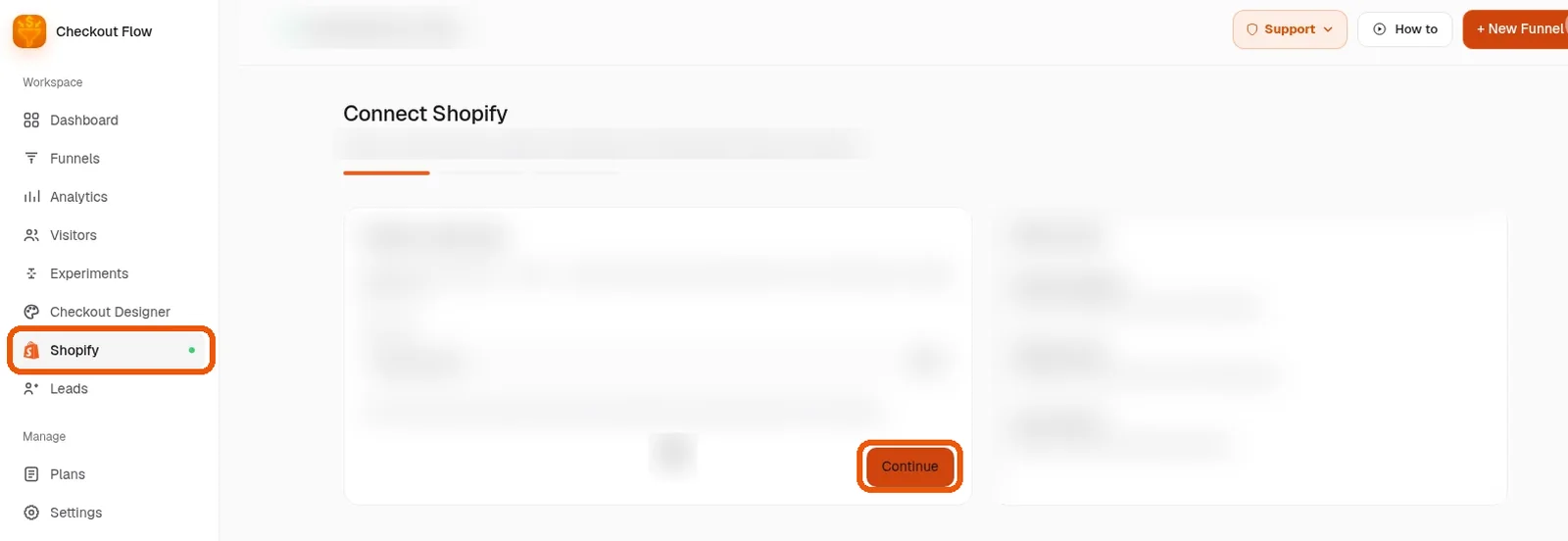
You are live
Place your test order, check it in Shopify, and you are live.
Want us to set it up with you?
Book a free setup call and we will connect your Shopify store to Whop together.
Launch day: the test plan
Spend ten more minutes here. It saves hours later.
- Cart to checkout: add a product, click Checkout, and confirm you land on the Whop checkout with the right items and discount.
- Buy now: if you use Buy now buttons, test one.
- Wallets: open your store on a phone and check that Apple Pay or Google Pay shows.
- Shipping: confirm the shipping options match your Shopify rates.
- Order in Shopify: pay, then find the order in Shopify admin.
- Fulfillment: mark the test order fulfilled with a tracking number and check that it shows on the Whop payment.
- Refund: refund the test order in Shopify and confirm the Whop payment is refunded.
Native Shopify checkout stays available as a fallback, so a problem never leaves you unable to sell.
Your first week
Day 1: tell your customers
A short email works well: payments are now faster, with Apple Pay, Google Pay and PayPal available. Keep it to two or three sentences.
Days 1 to 3: watch the numbers
- Checkout completions compared with last week
- Orders arriving in Shopify as expected
- Payments showing in your Whop company
Days 3 to 5: add revenue features
- Match the checkout to your brand in the checkout designer
- Add one order bump or one-click upsell after payment
- Turn on Meta Pixel and Conversions API so ad platforms see real purchases
Days 5 to 7: set up your emails
- Welcome and order emails so buyers know what happens next
- Abandoned checkout recovery on Shopify with Email Sync
- Failed payment and win-back emails with WhopMail, triggered by Whop events
What changes for your support team
Your support team keeps working from Shopify. A few answers are worth sharing with them before launch:
- "Where is my order?" Orders are in Shopify as usual, and tracking also shows on the buyer's Whop payment once you ship.
- "Can I get a refund?" Refund in Shopify admin, full or partial. The Whop payment is refunded automatically.
- "Why does my statement look different?" The charge runs through your Whop company, not Shopify Payments.
- "Can I pay with PayPal?" Yes, through Whop.
- "Where is Shop Pay?" It is not available on Whop checkout; wallets, cards and PayPal are.
A one-page note with these answers saves your team from guessing during launch week.
Troubleshooting without the jargon
"I can't find Whop in Shopify's payment settings." That is expected. Whop is not a Shopify payment provider; the app handles the connection.
"The setup asked for something I don't have." Stop and book a free setup call. We will finish it with you.
"Shop Pay disappeared." Shop Pay is part of Shopify's checkout, so it is not available on Whop checkout. Buyers use wallets, cards or PayPal.
"Some checkout app stopped working." Apps that depend on Shopify Payments may not apply once checkout runs on Whop.