
Shopify does not list Whop in its payment settings. The way to connect them is our official Whop app: it routes your Shopify checkout through Whop, and orders still land in Shopify. Here is the whole setup in screenshots.
Install our official Whop app
Open the app on the Whop App Store (listed as Upsell OTO & Order Bumps) and click Add. Choose the Whop company that should receive your payouts.
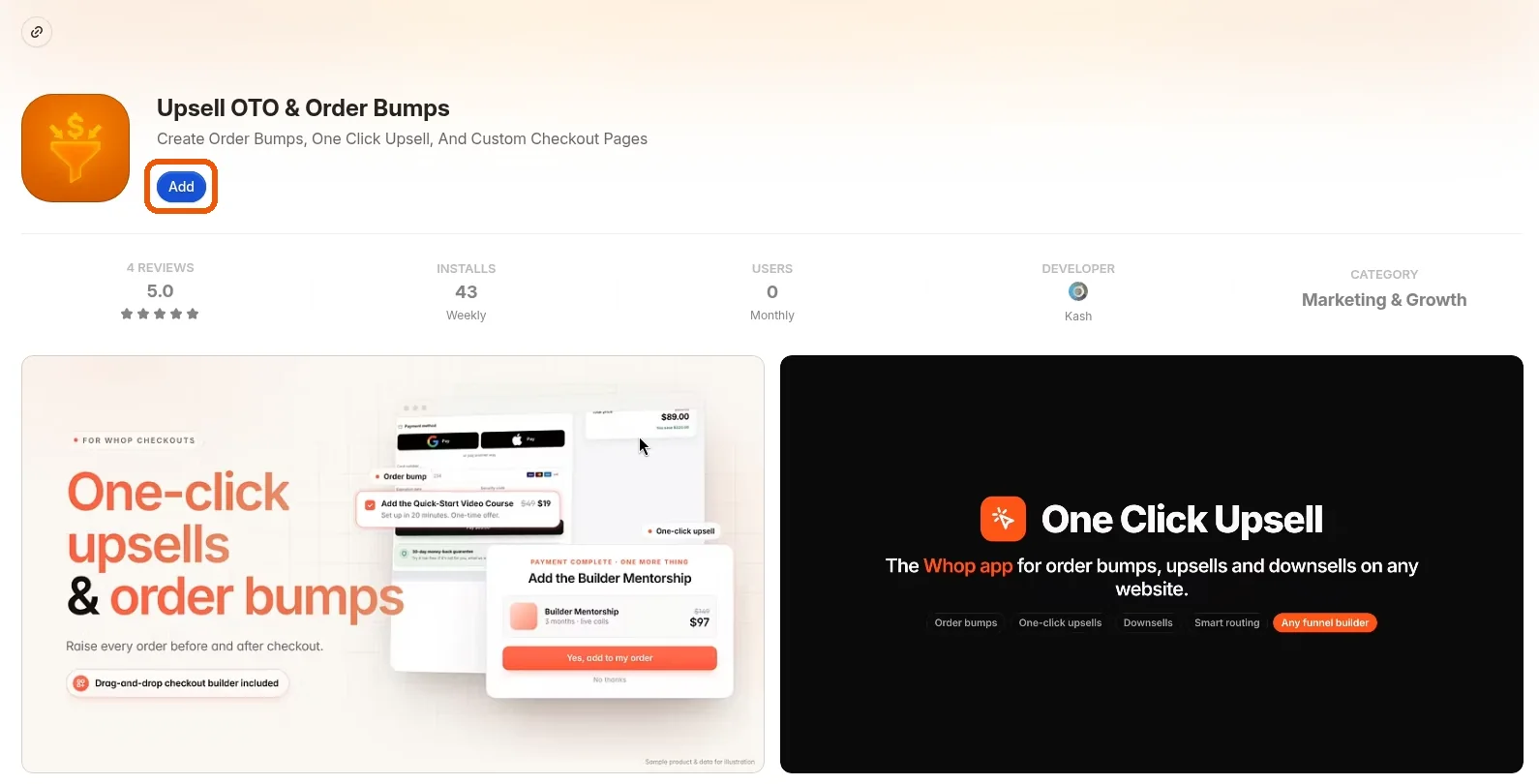 Install our official Whop app
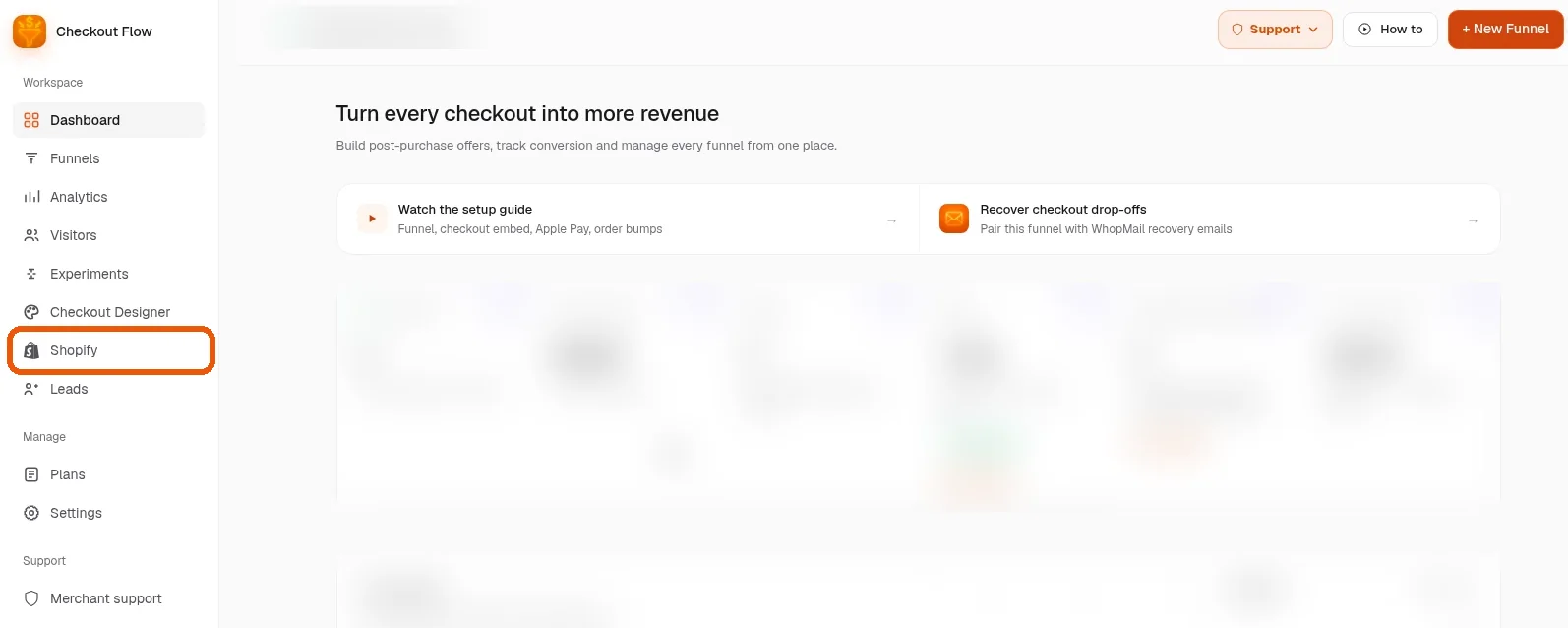
Open the app and click Shopify in the sidebar
Open the app from your Whop dashboard. Shopify is in the left sidebar.
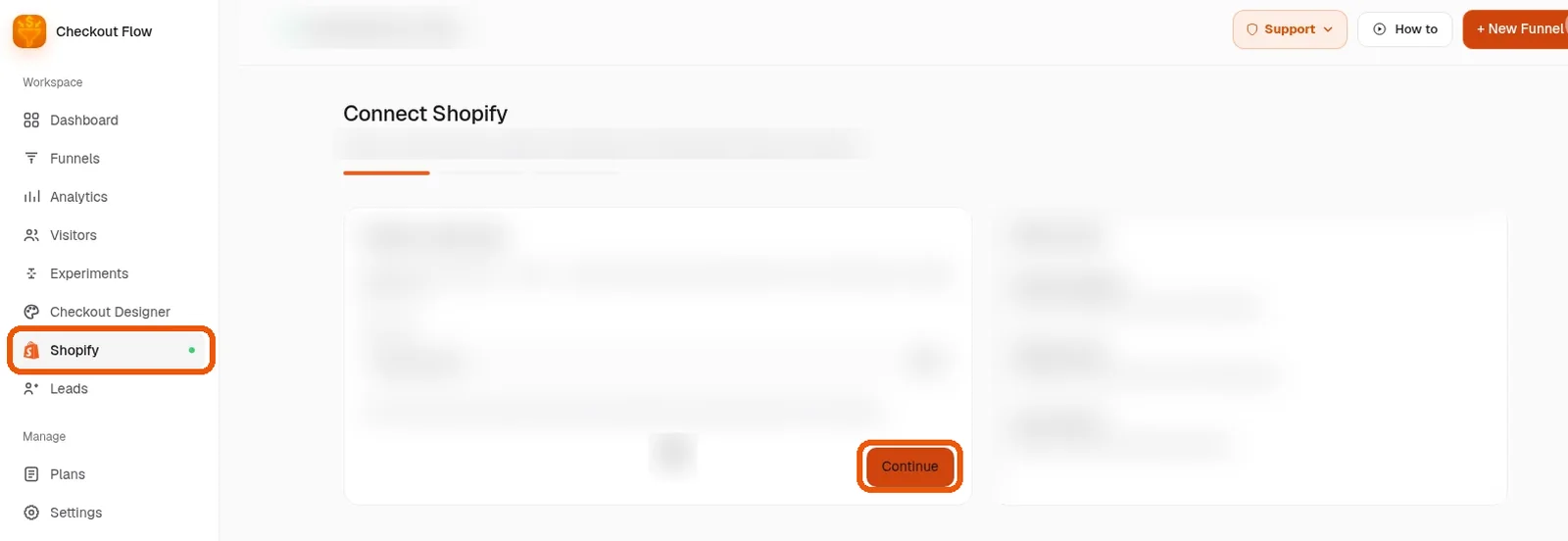
Follow the guided setup
The app walks you through connecting your store one screen at a time. Click Continue on each step. Most stores are done in about 10 minutes.
You are live
Your theme, products and cart stay on Shopify. Shoppers pay on Whop checkout and orders sync back to Shopify for fulfillment.
Want us to set it up with you?
Book a free setup call and we will connect your Shopify store to Whop together.
What the integration connects
The Whop Shopify integration links two systems that each do one job well:
- Shopify stays your storefront and back office: theme, products, cart, discount codes, shipping rates, orders and fulfillment.
- Whop becomes your checkout and payment layer: the checkout page, the charge, payouts to your Whop company and billing for recurring products.
- Our official Whop app keeps them in sync: paid orders appear in Shopify, tracking numbers flow back to Whop when you ship, and refunds started in Shopify refund the Whop payment.
Want the detail on each piece? Read Whop checkout on Shopify for the buyer side and Whop payment on Shopify for the money side.
Why store owners connect Whop to Shopify
- Payout holds: Shopify Payments can pause payouts or hold funds during a review. With buyers paying through Whop, checkout does not depend on Shopify Payments. You still follow Shopify's and Whop's terms.
- Wallets back: Apple Pay and Google Pay show on supported devices, plus cards and PayPal through Whop, with no PayPal account of your own needed.
- More revenue per order: a one-click offer after payment charges the same card and is added to the same Shopify order.
- Cleaner ad data: browser and server events from ad click to upsell, deduplicated, so ad platforms optimize on real purchases.
What to prepare
- Your Whop company, with payout details added
- Admin access to your Shopify store
- Products and shipping rates already set up in Shopify
- A low-priced product or discount code for one test order
For a fuller launch plan, including what to do in your first week, see Connect Shopify to Whop: checklist and first-week plan.
What your buyers will see
Buyers keep shopping on your Shopify store exactly as before. The difference starts when they click Checkout:
- Apple Pay and Google Pay at the top of the page on supported devices
- A familiar address form with the shipping rates you set in Shopify
- Cards and PayPal through Whop in one secure payment block
- Their Shopify cart, discount codes and totals carried over
- An optional one-click offer after payment, charged to the same card
- A thank-you page styled like your store
Shop Pay is part of Shopify's own checkout, so it is not available here. Everything else about your store, from product pages to order emails, stays the same.
After you are live
Orders land in Shopify with their line items. You pack and ship as usual, and the tracking number attaches to the matching Whop payment. Refunds happen in Shopify admin, full or partial. Money lands in your Whop company and pays out on Whop's schedule.
What it costs
- Our app: $99.95 per month (1% platform fee) or $149.95 per month (0.5% platform fee). The platform percentage is waived for early users for now.
- Whop processing: Whop's own fees on every charge. See Whop's fee page.
- Shopify: your plan stays the same. Check how synced orders appear on your invoice.
Is it a fit?
It suits Shopify stores with held or limited Shopify Payments, stores that lost wallets after leaving Shopify Payments, and brands that want one-click upsells. It is less of a fit if your buyers depend on Shop Pay. New to Whop altogether? Start with Whop and Shopify together: a plain-English overview.